TV History
Nostalgia, idents and broadcast-era bits and pieces
Nostalgia, idents and broadcast-era bits and pieces
TV Clocks App
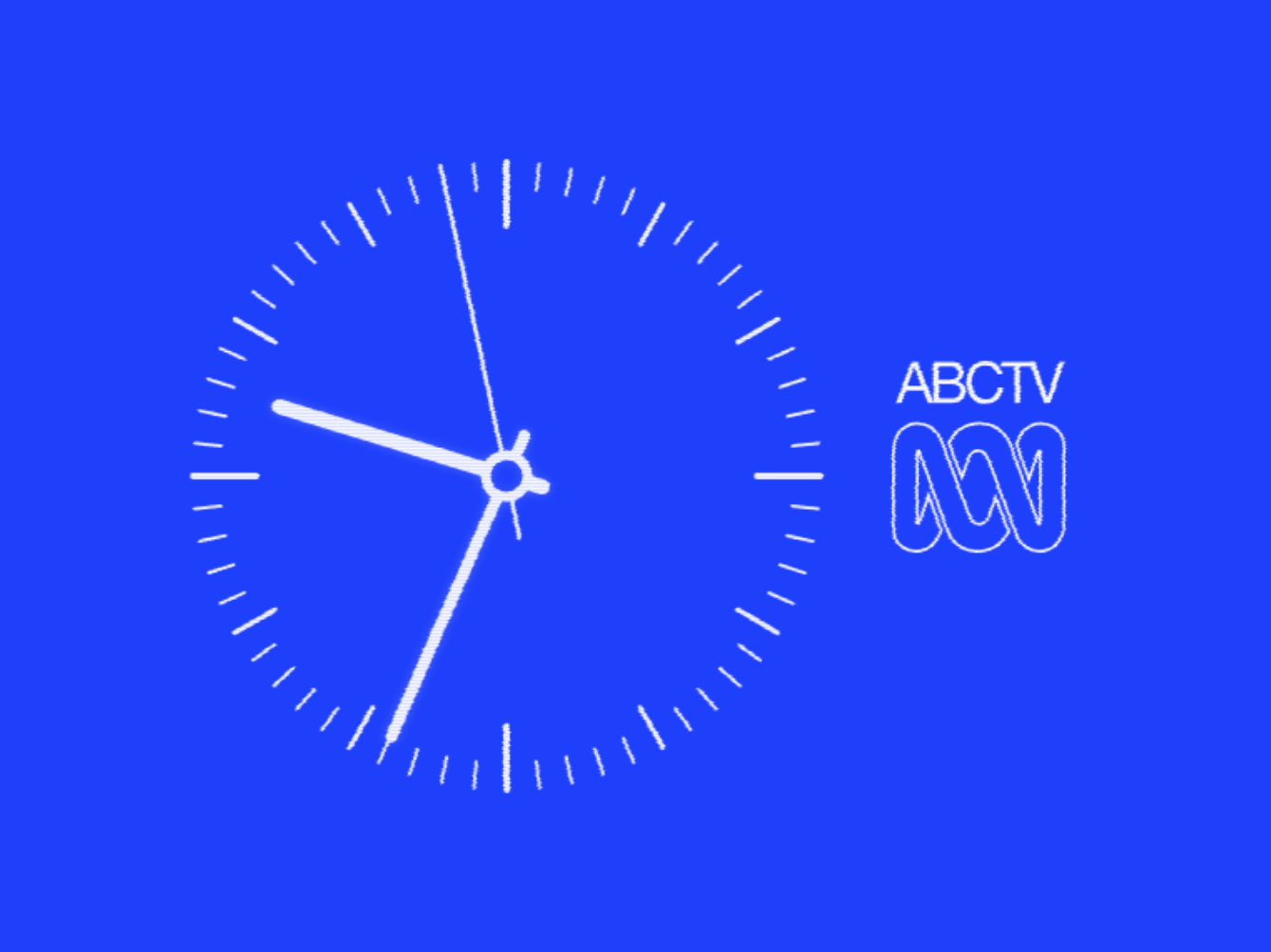
TV Clocks is an interactive broadcast-clock recreation project focused on classic Australian and UK on-air clock styles.
It combines period-accurate visuals with configurable analog-era effects so you can preview how each ident looked and behaved on broadcast displays.
Functionality
Choose from multiple historical clock/ident variants and switch styles instantly.
Adjust analog video effects, scaling, refresh settings, and save/load effect presets.
Use time pips and radio stream playback, with optional transmission-delay compensation.
Support
If TV Clocks is useful and you feel like chipping in for hosting and ongoing fiddling, you can buy me a coffee here.
Updates
There is now a proper Windows screen saver installer, along with a separate TV Clocks settings window, WebView2 install guidance, and shortcuts into the usual Windows Screen Saver Settings menu.
The screen saver version now includes the main display controls, analog video effects, time pips, and presets, and it now follows the main TV Clocks page rather than a separate test-only build.
The homepage also got a proper TV Clocks download panel, install notes, offline WebView2 instructions, a cleaner layout, and updated contact links in the footer.
Radio controls and metadata were tidied up with clearer play and stop behaviour, better delay wording, and some station naming and ordering fixes, including Perth now showing as 6WF 102.5 MHz.
The WIN-4 clock also had a round of work, with restored advertising-clock artwork, corrected 4:3 presentation, slide wipe and gesture tweaks, and a note about the generated background imagery.
Presets were expanded so saved effect presets also remember the full camera geometry, along with some general link cleanup and sync work across the TV Clocks pages.
Late February brought optical clock link aliases, feedback and contact hints, overlay asset sync, tall-window fill-scaling fixes, and a general round of layout cleanup.
Earlier on, the clock controls were refined a bit further, monochrome PAL dot behaviour was improved, and the main TV Clocks page was brought into line with the latest published controls.
The first public TV Clocks build went up around then, followed by some early metadata cleanup and Azure-hosted network time sync work to get the NTP-based correction behaving properly.
Windows Screen Saver
A Windows installer is also available for a dedicated TV Clocks screen saver build with its own settings window.
The screen saver build includes clock styles, display and time controls, analog video effects, time pips, and effect presets. Radio streaming is not included in the screen saver version.
System Requirements
- Windows on an x64-compatible PC.
- Microsoft Edge WebView2 Runtime is required.
- Allow about 7 MB on disk for the installed TV Clocks screen saver itself.
- If WebView2 is not already installed, allow about 807 MB total on disk for WebView2 plus the installed TV Clocks screen saver.
- The screen saver installer download is 4.1 MB. If WebView2 is missing and you use Microsoft's bootstrapper, that download is about 2 MB, but it installs the much larger runtime.
Installation
- Run the TV Clocks installer.
- If WebView2 is missing, let the installer fetch and install it from Microsoft.
- Open Windows Screen Saver Settings, choose TV Clocks, then use the Settings button to adjust the screen saver.
Microsoft's WebView2 bootstrapper requires an internet connection.
Offline Installation
If the PC you are installing on will not be connected to the internet, download Microsoft's x64 Evergreen Standalone Installer for WebView2 from the official WebView2 download page on another machine, copy it across, install WebView2 first, and then run the TV Clocks installer.
Performance
If frame rate is poor, open the Windows screen saver Settings button and reduce the output resolution and heavier video effects until playback is smooth.